
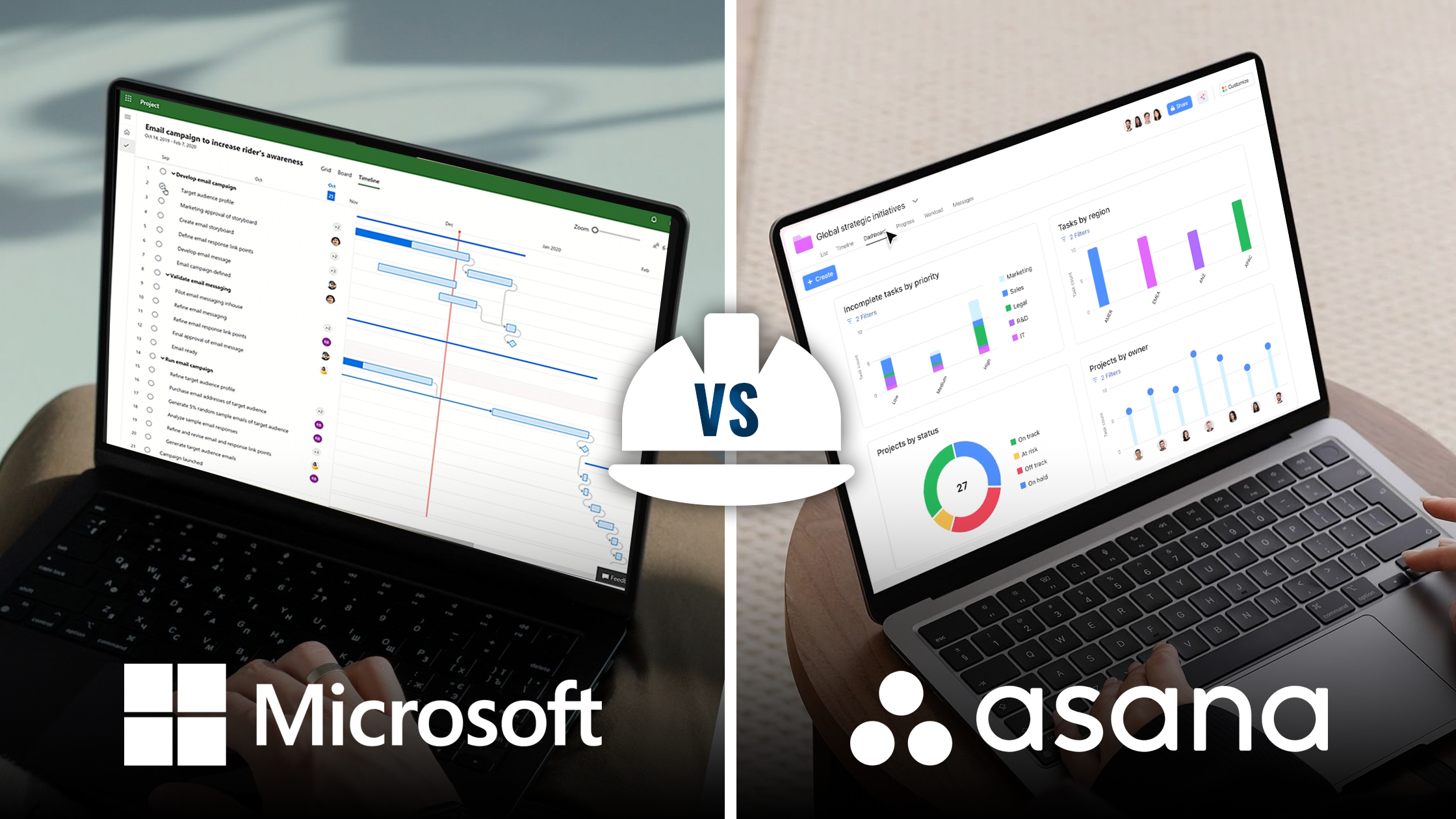
Choosing the right project management software often comes down to how your team works. Asana and Microsoft Project are two of the most popular project management tools, but they serve very different needs. Asana focuses on flexible, collaborative task tracking with tools like Kanban boards, timelines, and automation rules that help teams move fast. Microsoft Project is a structured scheduling tool for complex timelines, dependencies, and resources. In this comparison, we’ll break down how each tool handles project planning, ease of use, collaboration, and reporting so you can decide which one is best for your team.
Overview of both project management software tools
Asana
Asana is a cloud-based work management platform for organizing projects, assigning tasks, and tracking progress across various teams. It’s flexible and straightforward, with multiple views—task lists, boards, timelines, and calendars—so you can see progress and deadlines without technical setup.
Who it’s best for: Asana is best for small to medium-sized teams, agencies, startups, and operations groups that need quick setup and clear visibility. It’s a solid program for contractors and project leads managing daily task coordination rather than long-term scheduling.
Key standout features
- Customizable workflows with templates and automation rules
- Multiple project views (list, board, timeline, calendar)
- Task dependencies and status tracking
- Built-in collaboration via comments and shared dashboards
- Integrations with Slack, Google Drive, and other popular tools
Asana stands out for its clean design and flexibility, helping teams stay organized without feeling bogged down by complex scheduling tools.
Microsoft Project
Microsoft Project is a structured project management software for advanced scheduling, resource planning, and budgeting. It uses Gantt charts, dependency mapping, and resource allocation to provide managers with a detailed view of project timelines and workloads. Its precision makes it ideal for big projects where delays and cost overruns have big financial implications.
Who it’s best for: Microsoft Project is best suited for large teams, corporate departments, and enterprises that run complex construction, engineering, or IT projects. It’s tailored for project managers who need to oversee multiple contractors, budgets, and timelines simultaneously.
Key standout features
- Advanced scheduling engine with critical path analysis
- Resource and cost management tools
- Portfolio and multi-project dashboards
- Baseline tracking for comparing planned vs. actual progress
- Seamless integration with Microsoft 365 tools like Excel, Power BI, and SharePoint
Microsoft Project is structured and precise. It’s for professionals who need control over resources and timelines, not just tracking daily tasks.
Feature comparison: Asana vs. Microsoft Project
| Asana | Microsoft Project | |
| Project scheduling | Supports dependencies, start/due dates, timeline view, and automated start shifts via rules | Full scheduling engine with network diagram, automatic recalculation, critical path, constraints |
| Budgeting/cost tracking | Basic with integrations or via custom fields (not native) | Native cost and budget modeling (resource rates, baseline cost projections) |
| Document management | File attachments per task, integration with Dropbox, Google Drive, and OneDrive | Integrates with SharePoint / Teams / OneDrive for document storage and linking |
| Mobile app access | Full-featured mobile apps for iOS and Android with near parity to the web | “Project for the web” offers mobile access; traditional Project clients are less mobile-friendly |
| Integration options | Extensive integrations: Slack, Dropbox, Jira, Salesforce, many more | Deep integration with the Microsoft ecosystem (Office, Teams, Power BI) plus APIs for third-party |
| Training/support | Extensive online help, community forums, guides; paid tiers get priority support | Microsoft’s enterprise support, formal training, certification paths, and robust documentation |
Pricing and plans
Asana pricing
- Free plan for up to 10 users (basic task management)
- Starter plan: $10.99/user/month (billed annually) or $13.49 monthly
- Advanced/Business plans: $24.99/user/month (annual) or $30.49 monthly (for more features)
- Enterprise tier: custom pricing
- Free trial for paid tiers typically offered (30 days)
Microsoft Project pricing
Microsoft does not publicly list all forms (desktop vs. cloud) in a single table; however, Project is often sold as part of Microsoft 365 or via standalone Project plans.
- Project Plan 1, Plan 3, and Plan 5 are common cloud options
- Desktop “Standard” or “Professional” versions are perpetual licenses or subscription licenses
- Some versions require Microsoft 365 / Office 365 integration
- Microsoft typically bills per user (per seat) rather than per project
- Free trial versions are sometimes available via Microsoft or volume licensing
Ease of use
Asana
Setup and learning curve
Asana is designed for quick onboarding. Small teams can create projects, assign tasks, and start workflows within hours. The platform’s template library and rule builder reduce setup friction, making it easy to customize processes without extensive training. Even teams new to project management software can get productive quickly.
Dashboard and user interface
Asana features a modern, clean interface with tabs, boards, side panels, and drag-and-drop functionality. Users often note that task management, status updates, and workflow visualization feel intuitive. Multiple project views—including lists, boards, and timelines—help teams manage both simple and moderately complex projects efficiently.
YouTube demo
For a quick overview of Asana’s interface and features, check out:
Mobile app usability
Asana’s mobile apps are fully featured, allowing users to update tasks, leave comments, attach files, and change statuses on the go. This makes it practical for teams that need flexibility outside of the office or jobsite.
Microsoft Project
Setup and learning curve
Microsoft Project has a steeper learning curve. Setting up tasks, dependencies, resource allocations, baselines, and cost models often requires more planning and experience. Teams may need guidance or training to use its full range of scheduling and reporting features effectively.
Dashboard and user interface
Microsoft Project has a traditional interface with menus, ribbons, and multiple views, including Gantt charts, network diagrams, and sheets. While powerful, it can be overwhelming for new users. Its strength lies in managing complex projects and resource-intensive workflows, rather than in visual simplicity.
YouTube demos
To see Microsoft Project in action, check out: What is Microsoft Project?. You can also find step-by-step guides, such as Project Essential Features on YouTube, that demonstrate task linking, resource management, and reporting.
Mobile app usability
Traditional Microsoft Project desktop clients are not optimized for mobile use, although “Project for the web” offers better mobile support for basic task tracking and updates. Teams that rely heavily on mobile access may find the experience limited compared to Asana.
Asana vs. Microsoft Project: Pros and cons
Asana
Pros
- Easy to adopt, especially for cross-functional teams
- Strong collaboration features (comments, guest access)
- Flexible, adaptable workflows
- Suitable for managing many small tasks or subtasks
Cons
- Lacks native cost and advanced scheduling features
- It can get expensive as the user count grows
- Automation rules may reach limits in mid-tier plans
- Less suited for deeply technical, large-scale, resource-intensive projects
Microsoft Project
Pros
- Robust scheduling, resource, and cost modeling
- Baselines, critical path, portfolio tracking
- Deep integration with Microsoft 365 tools
- Scales well for large, complex projects
Cons
- High learning curve, setup time
- Less intuitive UI for non-project managers
- Licensing complexity and cost
- Collaboration features are weaker unless supplemented with SharePoint/Teams
Final verdict: Which project management software is right for you?
If your team primarily coordinates execution, communication, and task workflows, and you don’t need heavy cost modeling or resource leveling, Asana will often be the better fit. It gets you up and running quickly and excels for cross-functional teams.
If your organization manages large-scale, resource-intensive projects, capital works, or requires detailed scheduling, baselining, and cost controls, Microsoft Project is the stronger choice—provided your team invests in training and process discipline.
If you want to dig deeper into construction-oriented project tools, check out these guides:
- SmartBuild—project management software for construction professionals
- 2024 top tech companies for project management
- Lumber software — Lou Perez
Want more articles like this? Subscribe to our newsletter so you’ll stay updated on tools, software comparisons, and solutions tailored to construction and trades.